MyTime Kroger not working: login, schedule and timecard fixes
If MyTime Kroger is not working, first identify whether the problem is the login, schedule, timecard, or another employee system. A blank schedule, a rejected password, and a wrong paycheck are different problems and should not be troubleshot the same way.
MyTime-Kroger.net is an independent guide. We cannot unlock a Kroger account, change a schedule, edit a timecard, or access payroll records.
MyTime Kroger not working at a glance
| What you see | Check first | Best next step |
|---|---|---|
| Forbidden or access denied | Old session, wrong route, account permissions | Start a clean session from the Kroger route supplied to you |
| Login page keeps returning | Cookies and stale sign-in data | Allow required cookies and reopen the employee sign-in |
| Password rejected | Current employee password | Use Kroger-authorized password help instead of repeated guesses |
| EUID not recognized | Employee identifier | Check Kroger onboarding information or authorized support |
| Schedule blank | Selected week and FEED schedule view | Check the correct week, then confirm an upcoming shift with the manager |
| Wrong or missing punch | Timecard record | Report the exact date and worked time through the approved correction process |
| Paycheck hours look wrong | Final timecard for the same pay period | Compare timecard and paystub, then use payroll support if the paystub is still wrong |
Start with the right Kroger employee system
A schedule shows planned work. A timecard shows recorded work time. A paystub shows payroll output. FEED is a Kroger-published associate resource and mobile schedule route. MyInfo is Kroger’s HR technology platform.
For the normal browser and UKG access routes, use the MyTime Kroger guide. This page is for errors after you already know which employee system you are trying to use.
MyTime says Forbidden or access denied
A Forbidden page does not prove that MyTime is down for everyone. The error can appear when the session, route, or account permission is not accepted.
- Close old MyTime, Kroger, UKG, and SecureWEB tabs.
- Open a fresh browser session.
- Start from the Kroger employee route supplied by your workplace.
- Do not reuse a saved link from an unrelated employee or another company.
- If the same account works on a store device but not elsewhere, ask whether remote access is allowed for that route.
- If the error continues, use the authorized support path for the account.
Do not disable security software, change device location, or try to bypass employer access controls.
Login page keeps looping back
Kroger’s SecureWEB page states that cookies are required for correct operation. A stale or blocked authentication cookie can leave you on a repeated sign-in screen.
- Close duplicate Kroger sign-in tabs.
- Allow cookies for the Kroger employee sign-in page.
- Remove stale site data for the affected Kroger sign-in domain if needed.
- Reopen the employee route and sign in once.
- If the loop continues across a clean session, stop repeating credentials and use authorized account support.
For SSO-specific details, use the Kroger SSO guide.
Forgot password or EUID
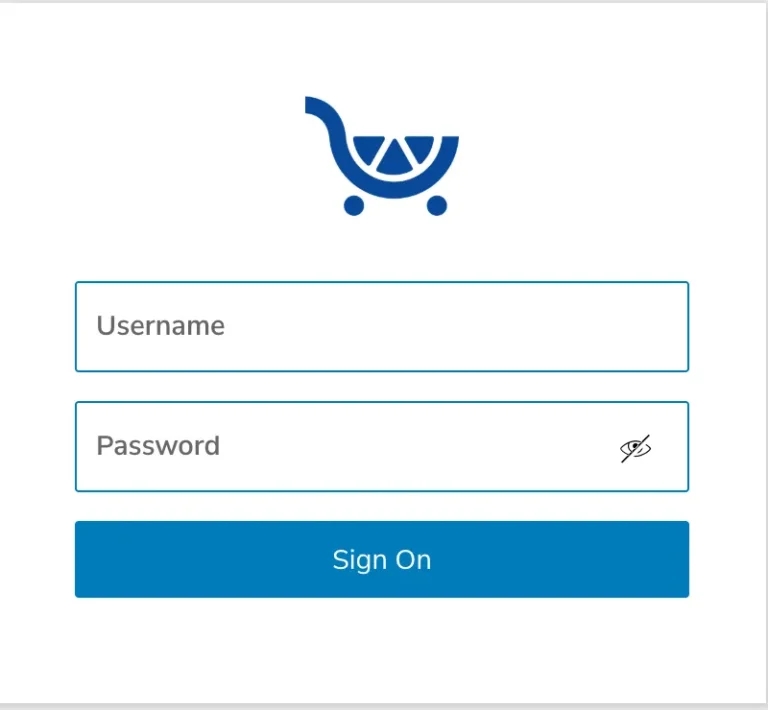
Kroger’s SecureWEB login uses the terms Enterprise User ID and Password and provides help links for both. Use Kroger’s own recovery route.
I could not verify one current Kroger-wide rule that every employee password expires after the same number of days. I also could not verify one universal EUID letter-and-number pattern.
If the employee identifier is the problem, use the Kroger EUID guide. Do not copy an example ID from another website and try to turn it into your own.
MyTime schedule is blank or missing
First make sure you are looking at the correct week. Then check the Schedule tab in FEED Mobile if that route is available to your account. Kroger’s current FEED listing explicitly says hourly associates can use a Schedule tab.
- Check the week and calendar dates.
- Refresh the current schedule view.
- Start a fresh employee session.
- Check FEED for the same dates.
- If your next shift is close and the schedule is still unclear, contact the scheduling manager.
Do not assume that an empty screen means you are off work. For deeper schedule questions, use the Kroger employee schedule guide.
MyTime and FEED show different shifts
Compare the same date and week in both views. Refresh both sessions. If the shift still differs, ask the scheduling manager which record is current.
A screenshot proves what one screen showed at one moment. It does not prove that the schedule did not change later.
New employee schedule is not showing
Check FEED and the current MyTime week first, then contact the manager who gave you your initial schedule. I could not find a current Kroger public rule that says every new employee account becomes active after one fixed number of days.
Do not create a second employee account through an independent website. Kroger employee access should come from Kroger onboarding or an authorized workplace contact.
Clock-in or clock-out is missing
A missing punch is a timekeeping issue. Record the exact work date and the actual start or end time you worked, then use the correction process your store allows.
- Open the timecard for the correct workweek.
- Find the missing or wrong punch.
- Write down the actual time worked.
- Use the correction control only if your account is allowed to use it.
- Otherwise, report the entry to the manager or authorized timekeeper.
- Check the timecard again after the correction.
For clock-in methods and mobile punching limits, use the Kroger clock-in system guide.
MyTime timecard has the wrong hours
Compare the recorded punches with the hours you actually worked. Look for a missing punch, duplicate entry, wrong date, or a correction that has not reached a final status.
A planned eight-hour shift does not prove that the timecard contains eight recorded hours. Check the timecard itself before moving to a payroll complaint.
Timecard is correct but paycheck is wrong
Use the final timecard for the same payroll period and compare it with the issued paystub. If the timecard is correct but the paystub still shows the wrong hours or amount, move the problem to payroll or HR instead of continuing to edit MyTime.
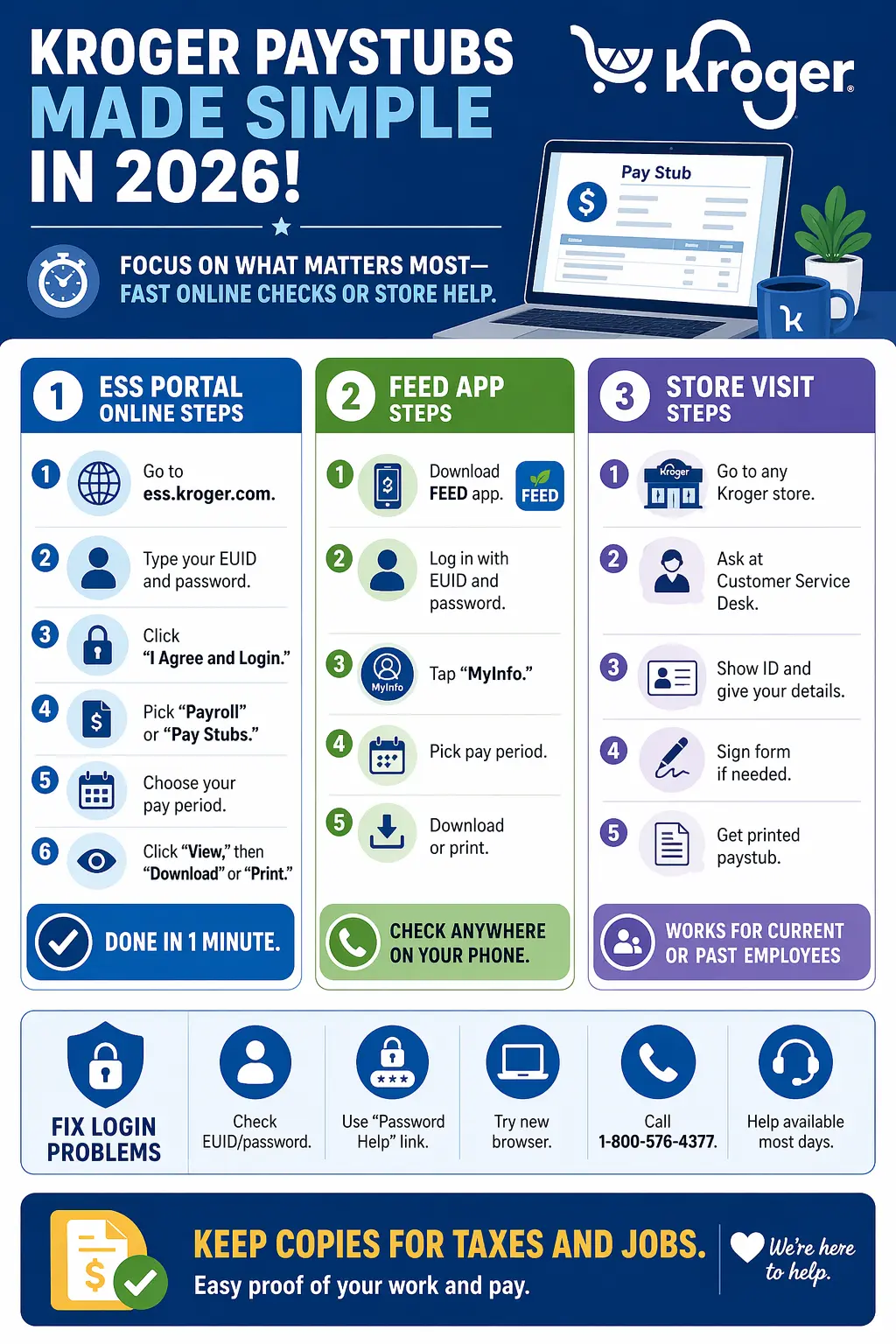
Kroger’s current FEED information points associates to ExpressHR for paycheck stubs. For payroll-specific issues, use the Kroger paystub guide.
Time off request is missing or still pending
Submission does not mean approval. Open the request record and check the exact date and current status. If the requested date is close and the status is still unclear, contact the scheduling manager.
If approved time off still appears as a shift, compare the approval record with the live schedule before the shift. The Kroger time off request guide covers pending, approved, denied, cancelled, and schedule-conflict cases.
UKG app asks for a tenant URL
The Kroger-specific UKG tenant that resolves live is https://kroger-sso.prd.mykronos.com/. Use it when that matches the setup instructions supplied by Kroger.
UKG now calls UKG Dimensions UKG Pro Workforce Management. For the tenant URL, app setup, and old Kronos naming, use the Kroger UKG Dimensions guide.
FEED Mobile will not load or sign in
Use only the official FEED Mobile app published by The Kroger Co. Start with a current app version and a fresh sign-in session. If FEED opens but one linked employee system fails, the problem may be with that linked system instead of FEED itself.
The FEED Kroger login guide covers the official app, browser route, hourly Schedule tab, and ExpressHR paycheck link.
Do not use unofficial login fix sites
Never give an independent website your Kroger password, Enterprise User ID, verification code, Social Security number, bank information, paystub, or tax form.
An independent guide can explain a route or error. It cannot unlock a private Kroger employee account.
When to stop troubleshooting yourself
Stop browser-level troubleshooting and contact the appropriate workplace channel when the problem requires access to a private employee record.
- Your account stays locked or rejected after authorized recovery.
- Your next shift is unclear.
- A timecard correction needs manager approval.
- An approved request conflicts with the posted schedule.
- A correct timecard still does not match the issued paystub.
- Your employee record shows the wrong location, department, or status.
Questions people search when MyTime Kroger is not working
Is MyTime Kroger down?
A failed login or blank page on one device is not enough to prove a company-wide outage. Test a fresh session and another authorized employee route before treating it as a broad outage.
Why does MyTime work at the store but not at home?
The route, account permission, or remote-access rule may differ. FEED Mobile has a clearer Kroger-published remote-access statement because its app listing says associates can access FEED from anywhere.
Why does MyTime keep asking me to sign in?
Check cookies and stale sessions first. Kroger SecureWEB says cookies are required.
Why is my schedule gone?
Check the correct week and FEED, then contact the scheduling manager if an upcoming shift is unclear.
Why are my hours missing?
Check the timecard for missing or incorrect punches. A schedule is not the final record of worked time.
Should I call Kroger customer service for MyTime?
Do not treat Kroger’s customer Help Center as a verified employee payroll or MyTime help desk. Use the employee support route supplied by your workplace.
Sources checked September 10, 2026
- Kroger SecureWEB for Enterprise User ID, password, authorized-use, and cookie information.
- FEED Mobile on Google Play for The Kroger Co. developer identity, remote access, and hourly Schedule tab.
- The Kroger Co. 2025 Responsible Business Report for Sage scheduling, pay-stub information, paid-time-off requests, and MyInfo context.
- UKG for the UKG Dimensions to UKG Pro Workforce Management name change.
If a current Kroger screen or workplace instruction conflicts with this independent guide, follow the Kroger instruction shown to your employee account.