MyInfo Kroger login and HR portal guide
MyInfo Kroger is Kroger’s HR technology platform, and the current Kroger subdomain is myinfo.kroger.com. When checked on September 10, 2026, that address redirected through Kroger’s PingOne sign-in flow to an Oracle Cloud login service. That makes it a much stronger starting point than an unofficial portal page found in search results.
Kroger’s own 2025 Responsible Business Report calls MyInfo its new HR technology platform and says a recruiting module was added in 2024. Kroger does not publish a complete public MyInfo handbook showing every employee menu, so this guide separates what Kroger publicly confirms from what employees commonly report seeing after sign-in.
MyTime-Kroger.net is an independent guide. It does not operate MyInfo, cannot reset a Kroger account, and cannot see your EUID, password, paystub, W-2, direct-deposit details, benefits, schedule, or employee record.
MyInfo Kroger login at myinfo.kroger.com
If your goal is simply to reach MyInfo, start with the Kroger-owned address myinfo.kroger.com. On September 10, 2026, that address handed the session to PingOne and an Oracle Cloud sign-in service.
- Type
myinfo.kroger.cominto the browser address bar. - Check that you started on a
kroger.comsubdomain. - Follow the Kroger authentication screen that appears.
- Use the employee credentials assigned to your account.
- Complete any security check Kroger requires.
- After sign-in, use only the HR options shown to your employee profile.
- Sign out when you finish on a shared or store computer.
Do not enter employee credentials into this website or another independent MyInfo guide. A search result can look official without being operated by Kroger.
If the Kroger sign-in itself is failing, use the Kroger SSO guide for the authentication layer rather than treating every login problem as a MyInfo problem.
What Kroger publicly confirms about MyInfo
Kroger gives a precise description of MyInfo in its 2025 Responsible Business Report. In 2024, the company added a recruiting module to its new MyInfo HR technology platform to improve talent attraction systems.
| MyInfo detail | Current evidence |
|---|---|
| Platform name | MyInfo |
| Platform type | Kroger HR technology platform |
| Recruiting module | Added in 2024 |
| Purpose of recruiting module | Support hiring and management teams and improve candidate experience |
| Login address | myinfo.kroger.com currently resolves into Kroger’s corporate sign-in flow |
| Complete public employee manual | Not published in the sources reviewed |
| One universal menu for all employees | Not publicly documented |
Kroger says the 2024 recruiting tools were intended to improve candidate experience, time-to-hire, and time-to-start. That is the strongest first-party description of MyInfo I could verify.
Kroger’s 2025 Responsible Business Report is the source for those MyInfo details.
What employees may see inside MyInfo
Employee discussions in 2026 describe MyInfo screens for pay information and payment methods. That is useful evidence about real-world use, but it is not the same as a Kroger-published universal feature list.
One April 2026 employee discussion described a MyInfo Payment Methods page used for direct-deposit information. Another February 2026 discussion showed why access rules can differ. Some employees said payment-method changes had to be made from a Kroger-connected store computer, while another employee said MyInfo could be opened away from work.
That difference matters. It would be misleading to tell every associate that all MyInfo functions work from home, or that every sensitive banking change can be made on any device.
Use this rule instead. If a feature appears in your authorized MyInfo account, follow the instructions shown there. If it is missing or restricted, ask the Kroger contact responsible for that employee record.
MyInfo, ExpressHR, FEED, MyTime and Sage are not the same thing
Kroger uses several employee technologies. Search results often merge them into one “employee portal,” but Kroger’s public sources describe different roles.
| Resource | Best-supported role |
|---|---|
| MyInfo | HR technology platform |
| FEED Mobile | Associate hub with schedule access, company information and links to work applications |
| ExpressHR | Paycheck-stub route specifically named in the current FEED app listing |
| MyTime | Workforce scheduling and time-related context |
| Sage | Kroger virtual assistant for schedules, pay-stub information, PTO requests and training information |
| Fresh Start | Associate onboarding and training application |
The relationship is more useful than treating all the names as synonyms. For example, Kroger’s official FEED listing still tells associates to reach paycheck stubs through ExpressHR, while Kroger’s corporate report identifies MyInfo separately as its HR technology platform.
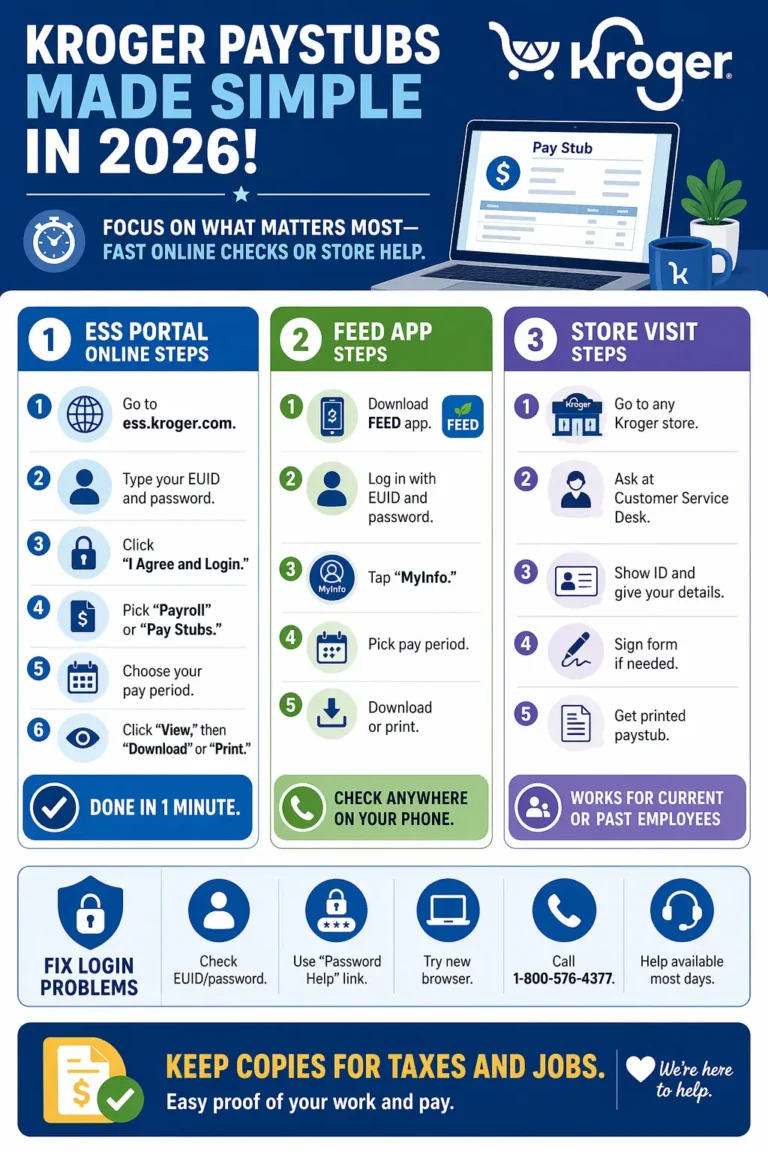
For payroll-specific access, use the Kroger paystub and ExpressHR guide. For work shifts, use the Kroger employee schedule guide.
Does MyInfo Kroger show paystubs
Current employee reports often connect MyInfo with pay information, but Kroger’s clearest public instruction for paycheck stubs is still ExpressHR through FEED. The Google Play and Apple listings for FEED both tell associates to access paycheck stubs through the profile menu, ExpressHR Quick Link, or navigation bar.
That does not mean an associate can never encounter payroll information inside MyInfo. It means a public guide should not invent one MyInfo paystub menu for every Kroger employee when Kroger itself publicly names ExpressHR as the paycheck-stub route.
If you need a pay statement now, start with the route shown inside your Kroger employee account or FEED. If you see a MyInfo pay or payment section, use that current screen. If no pay statement appears, move to the payroll route Kroger provides rather than repeatedly resetting your password.
If the latest paystub is missing
Check the pay period first. Then confirm that you are using the payroll resource your employee account currently provides. A missing statement and a failed MyInfo login are different problems.
Kroger does not publicly publish one nationwide rule saying every associate’s online paystub appears on the same weekday. Avoid relying on a fixed Wednesday rule unless your own division or payroll instructions state it.
Does MyInfo Kroger have W-2 forms
Many third-party pages say W-2 forms are always inside MyInfo. I could not find a current public Kroger source that documents one universal MyInfo W-2 menu for all associates.
A W-2 is a tax document, so use the current tax-document route Kroger provides to your employee group. If your MyInfo account includes a tax-document section, follow the screen in the authorized Kroger service. If it does not, use Kroger’s current payroll or tax-document instructions.
Former associates should not assume active MyInfo access continues after separation. Kroger operates a separate historical-information sign-in service, but its public login page does not list every document available behind the sign-in.
Can employees change direct deposit in MyInfo
There is meaningful employee evidence that MyInfo is used for payment methods. A 2026 Kroger employee discussion described adding and removing accounts in MyInfo Payment Methods. That is useful, current real-world evidence.
There is also evidence that the security rules can differ. In another 2026 discussion, some employees said payment-method changes had to be completed from a store computer, while another employee reported broader access.
So the safe guidance is not “MyInfo direct deposit works everywhere.” Use the Payment Methods or banking option only if it appears in your authorized account and follow the device or location restriction Kroger gives you.
- Do not enter banking information on an independent Kroger portal guide.
- Do not use a link sent by an unknown person to change direct deposit.
- Check the account and routing information before submitting a change.
- If an unfamiliar payment account appears, contact authorized Kroger payroll or HR support promptly.
Can employees update personal information in MyInfo
Because MyInfo is an HR technology platform, employees may encounter profile or employment information inside it. Kroger does not publish a complete public list of every editable field.
If your account shows an update option for personal information, change only the field you need and review it before saving. Fields connected with legal name, tax data, banking, or identity can require additional verification.
Do not assume that every field is self-service. A field can be visible without being editable. If the correct option is not available, contact HR rather than trying to work around the restriction.
MyInfo Kroger for new employees
New hires should not look for a public MyInfo registration form. MyInfo access is tied to Kroger’s employment and identity systems.
- Complete the onboarding steps Kroger gives you.
- Use the employee credentials assigned during onboarding.
- Go to the Kroger-provided MyInfo or HR route.
- Complete the company authentication process.
- If the account is not recognized, contact the manager, onboarding contact, or HR.
Kroger’s public report confirms that MyInfo is part of its newer HR technology environment, but it does not publish a fixed number of hours or days before every new hire can use every MyInfo function.
Do not copy a “3 to 7 day activation” rule from another website and assume it applies company-wide.
MyInfo Kroger password and EUID help
Use the employee identifier and password Kroger assigned to your account. Do not guess a universal EUID pattern from examples posted online.
Some ranking pages state that every Kroger EUID follows one fixed letter-and-number format and that every password expires every 90 days. I could not verify those as current company-wide Kroger rules from the public sources reviewed for this guide.
If MyInfo does not recognize your employee ID
- Check that you started at
myinfo.kroger.comor another Kroger-provided employee route. - Use the employee identifier Kroger assigned to you.
- Close old login sessions.
- Try the current corporate sign-in again.
- Ask HR or authorized employee support if the account still is not recognized.
If you forgot the password
Use the recovery option shown by Kroger’s authentication flow. An independent website cannot reset a Kroger employee password.
If recovery fails, use the support route supplied by your workplace. Do not keep guessing passwords or use another employee’s account.
Why MyInfo Kroger may not work
Start by identifying what is failing. A redirect problem, an account problem, a missing HR feature, and a payroll issue need different fixes.
| Problem | What to check first | Next step |
|---|---|---|
| MyInfo will not open | Start at myinfo.kroger.com |
Try one fresh browser session |
| Login loops | Old session or cookies | Close Kroger employee tabs and start again |
| EUID not recognized | Employee identifier and account status | Ask HR or authorized employee support |
| Password rejected | Current corporate password | Use the Kroger recovery route |
| Access denied | Role, status or permission | Ask whether your account should have access |
| Payment method cannot be changed | Device or location restriction | Follow the rule shown by Kroger or use a store computer if instructed |
| Paystub missing | Payroll route and pay period | Check ExpressHR through FEED or the payroll option Kroger provides |
| Schedule missing | Wrong system | Use FEED or the scheduling route assigned to you |
When the browser reaches PingOne or Oracle after starting from myinfo.kroger.com, that handoff can be part of the current Kroger authentication flow. Do not judge a redirect only by the fact that the next host has a different company name. The important point is where you started and whether the redirect came from the Kroger-owned MyInfo address.
Can MyInfo Kroger be used from home
The MyInfo address is reachable from a normal web browser, but that does not prove every HR function is available remotely. Employee reports in 2026 conflict on some sensitive actions such as payment-method changes.
One employee reported that a store computer was required for a direct-deposit change, while another said they could log in from home. That is exactly why a single “MyInfo works from anywhere 24/7” rule is too broad.
If the login works at home but a sensitive option is missing, do not try to bypass the restriction. Use a Kroger workstation or another approved route if your workplace instructs you to do so.
Is there a MyInfo Kroger app
I could not identify a separate current Kroger app in the major app stores that is specifically branded as MyInfo. Kroger does publish FEED Mobile, and The Kroger Co. is listed as the developer.
FEED gives associates schedule access, company resources, news, and links to work applications. The current app listing also directs associates to ExpressHR for paycheck stubs.
For mobile employee access, use the Kroger employee app guide to separate FEED, MyTime-related access, and other employee systems.
Does MyInfo show schedules or time off
Kroger’s strongest public evidence for schedule access points to FEED and Sage, not to a universal MyInfo schedule page. FEED has a Schedule tab for hourly associates. Kroger also says Sage gives leaders and associates real-time scheduling information.
Kroger says Sage can also help associates request paid time off. That is stronger first-party evidence than claiming every MyInfo user has the same PTO menu.
For schedules, go to the Kroger employee schedule guide. For PTO questions, use the Kroger time-off request guide.
MyInfo and employee benefits
MyInfo belongs to Kroger’s HR technology environment, but Kroger does not publish one public MyInfo benefits dashboard that applies to every employee group.
Benefits can differ by employment status, plan, location, and bargaining agreement. Use the actual plan document and the benefits resource Kroger gives you before making a medical, retirement, or financial decision.
The Kroger employee benefits guide keeps plan and eligibility questions separate from MyInfo login troubleshooting.
Former Kroger employees and MyHistoricalInfo
Do not assume active MyInfo access continues after employment ends. Kroger maintains myhistoricalinfo.kroger.com, a separate historical-information sign-in resource.
Its public sign-in page has shown Company Single Sign-On, User ID, Password, and Forgot Password options. The public page does not describe every document available after login, so this guide does not promise that every former associate can retrieve every paystub or W-2 there.
If you recently left Kroger, keep separation instructions and use the historical or payroll route the company gives you. For old pay statements, see the former-employee section of the Kroger paystub guide.
MyInfo Kroger questions people commonly search
What is the official MyInfo Kroger URL
The current Kroger-owned address is myinfo.kroger.com. It currently redirects through Kroger’s PingOne authentication flow to an Oracle Cloud sign-in service.
Is MyInfo the same as ExpressHR
Kroger identifies MyInfo as its HR technology platform. Its current FEED app listing separately names ExpressHR as a route for paycheck stubs. Treat them as related employee resources, not automatically as the same label.
Is MyInfo the same as MyTime
No. MyTime is associated with scheduling and time-related work, while Kroger publicly calls MyInfo an HR technology platform.
Can I view paystubs in MyInfo
Employees commonly report using MyInfo for pay-related information, but Kroger’s clearest current public paystub instruction points to ExpressHR through FEED. Use the payroll route shown to your account.
Can I change direct deposit in MyInfo
Current employee reports describe MyInfo Payment Methods for direct deposit, but access restrictions can vary. Follow the option and device rules shown in your authorized account.
Can I access MyInfo from home
The website can be reached remotely, but some sensitive functions may have location or device restrictions. Employee reports show that these rules are not identical everywhere.
Does MyInfo show the Kroger schedule
Kroger’s strongest public schedule evidence points to FEED and Sage. Use the scheduling route Kroger gives your employee group.
Does MyInfo have W-2 forms
A universal MyInfo W-2 menu is not documented in the current public Kroger sources reviewed here. Follow Kroger’s current tax-document instructions.
Why does MyInfo redirect to PingOne or Oracle
When checked on September 10, 2026, myinfo.kroger.com redirected through PingOne to an Oracle Cloud login service. If you start from the Kroger-owned MyInfo subdomain, that handoff can be part of the current sign-in flow.
Who should I contact if MyInfo is not working
Use HR for employee-record or onboarding issues, authorized technical support for login problems, payroll support for pay records, and your manager or scheduling route for shift problems.
Sources checked on September 10, 2026
- myinfo.kroger.com, checked for the current Kroger-owned login handoff.
- Kroger 2025 Responsible Business Report, used for the MyInfo HR technology platform and 2024 recruiting-module facts.
- FEED Mobile on Google Play, used for current associate-app, schedule, ExpressHR and support details.
- FEED Mobile on the Apple App Store, used to confirm The Kroger Co. as developer and current FEED functions.
Employee-system screens and access rules can change. When a current Kroger screen or workplace instruction conflicts with this independent guide, follow Kroger’s newer instruction.