MyTime Kroger is an online employee portal that helps associates manage their work schedule, request time off, and stay organized in one place.
You can use it on a computer or mobile device to submit requests, check approvals, and make changes without needing to contact HR every time.
This guide explains everything in simple steps so you can easily manage your time off.
On the web portal (MyTime Kroger)
Log in to the MyTime Kroger portal using your Kroger EUID and password. This is usually done through your division’s UKG or Kronos login page.
On the Home screen, click the arrow on the My Schedule tile to open the calendar view.
In My Calendar or My Schedule, select the date or dates you want off.
Click the blue Request (or New Request) button at the top of the time grid.
Choose Time Off or Time Off Request.
Select the type of time off (vacation, personal, sick, unpaid, etc.), confirm the start and end dates or shifts, and add any notes if your store encourages them.
Click Submit or Apply. The request will then appear as pending until your manager approves or denies it.
On the UKG Dimensions mobile app
Open the UKG / Kronos app and sign in with your Kroger EUID and password.
Tap Requests or My Time Off, then choose Time Off.
Select the dates you want off, choose the correct time‑off type, and include any notes.
Tap Submit. The request will appear in your manager’s queue and in your own requests list.
How to cancel a pending time off request?
If you change your mind and your time off request is still pending, you can usually cancel or withdraw it yourself in MyTime.
On the web portal (MyTime Kroger)
Sign in to MyTime Kroger and open My Schedule or My Calendar by clicking the arrow on the My Schedule tile.
In the calendar view, click the pending time‑off block to open the Your request panel.
Click Cancel request (or Delete in some layouts). The change is immediate, so double‑check the dates before you confirm.
You can also go to Home → My Time Off or Requests, open the list of pending requests, select the one you want to cancel, and choose Cancel request or Delete.
On the UKG Dimensions mobile app
Open the app and sign in.
Go to Requests → Time Off or My Time Off.
Tap the pending request you want to cancel.
Choose the Cancel or Delete option and confirm.
This removes the request from your manager’s queue and keeps your schedule accurate.
What to do if your time off request is already approved?
If your time off has already been approved, you usually cannot cancel it yourself in MyTime; it must be adjusted or removed by a manager or scheduler.
If your plans change, talk to your manager or scheduler as soon as possible and explain your situation clearly.
Ask them to either cancel the approved time off or adjust the dates if your store and contract allow it.
In some setups, they may need to overwrite the approved time off or create a new schedule entry to reflect the change.
In unionized environments, approved vacation or protected time off may be harder to cancel without a solid, documented reason, so early communication is important.
If your manager cannot or will not change the approved time off, you may be able to ask for a shift swap with another associate, depending on your division’s rules and app features.
How to withdraw a pending time off request?
Withdrawing a pending time off request is the same as canceling it while it is still waiting for approval.
On the web portal, open My Schedule or My Calendar, click the pending block, go into the Your request panel, and choose Cancel request or Delete.
From Home → Requests or My Time Off, open the list of pending requests, select the correct one, and use the Cancel or Delete option.
On mobile, open the pending time‑off request under Requests → Time Off, then tap Cancel or Delete and confirm.
These steps help you remove a request that you no longer need, so your manager does not have to consider it when creating the schedule.
Can you request time off with less than 14 days notice?
Many associates ask whether they can request time off with less than 14 days notice. In many UKG Kronos setups, the system will allow you to submit a request even if the date is close, but approval depends on your store’s policies, staffing needs, and any union or contract rules rather than the software itself.
Some divisions or union contracts require two weeks’ notice for planned vacation or paid time off, while urgent or emergency requests may be treated differently.
During peak periods such as holidays or busy seasons, last‑minute requests are more likely to be denied if the schedule is already locked or staffing is tight.
If your request is short‑notice, it helps to explain your situation clearly and submit it as early as possible, even if it’s inside the 14‑day window.
You can’t fully use MyTime Kroger without signing in, but you can use the FEED mobile app and smart notification settings so you stay updated on schedules and company news with minimal logins. The goal is to let notifications do the work while you quickly confirm details when needed.
What MyTime Notifications Can (and Can’t) Do
MyTime Kroger is built on UKG/Kronos and is designed as a secure employee scheduling and timekeeping system, so most actions (accepting shifts, fixing punches, time‑off requests) still require a proper login. However, Kroger’s FEED mobile app and related tools can push key schedule updates, company news, and HR alerts to your phone so you don’t have to manually check MyTime several times a day.
These notifications help Kroger employees, store associates, and department leads stay ahead of last‑minute shift changes, new schedules, training reminders, policy updates, and communication from management.
Set Up FEED Mobile for Quick Alerts
The easiest way to stay updated with minimal logins is to use the official FEED mobile app that connects to MyTime and other Kroger associate tools.
Download FEED Mobile
Open the Google Play Store or Apple App Store on your personal phone.
Search for “FEED Mobile” by The Kroger Co. and install the official app for associates.
Sign in once with SecureWEB
Log in using your EUID (Enterprise User ID) and SecureWEB password, the same credentials used for MyTime.
After this first sign‑in, you usually stay logged in longer on mobile than on a web browser, so you won’t need to enter credentials as often.
Turn on push notifications
In FEED, go to Settings or Notifications and allow push notifications for schedule, news, and company updates.
Also enable notifications in your phone settings so the app can alert you without opening it every time.
Once this is done, FEED can ping you when new schedules are posted, when there’s store news, or when links to MyTime tools are relevant, even if you haven’t manually logged into the MyTime web portal that day.
Use FEED to Glance at Schedules Without Full Web Login
You still authenticate through Kroger once, but you can then glance at your MyTime schedule and notifications quickly from FEED without going through the full browser login flow each time.
Check your MyTime schedule (E‑Schedule) from the FEED schedule tile to see upcoming shifts, departments, and start/end times.
View timecard summaries and punches to catch missed punches or errors before the end of the week.
See notifications about schedule changes, training, skill updates, and new opportunities posted to your account.
This works well for associates who just want a quick “What days do I work?” or “Did my shift change?” view on their phone without re‑entering credentials into a desktop browser every time.
Turn On Email and In‑App Notifications Strategically
Besides push alerts, Kroger tools and the mobile app can also use email notifications and in‑app notices so you catch important updates even when you ignore push alerts.
Opt into email alerts for account updates, schedule posting windows, and HR communications where available in your Kroger profile settings.
Keep an eye on the Notifications or Messages area inside MyTime/FEED for items like missed punch exceptions, time‑off request responses, and schedule confirmations.
Adjust notification types so you see critical workforce updates (schedule, pay, benefits, timekeeping) but don’t get overwhelmed by low‑priority messages.
This notification mix lets store associates, cashiers, department heads, and overnight stockers stay informed about work hours, labor scheduling, vacation approvals, and policy changes without constantly logging into the MyTime website.
Best Practices for Kroger Associates
To make MyTime notifications genuinely useful (and compliant with Kroger policies), Kroger employees should treat FEED and MyTime as their single source of truth for work scheduling.
Always confirm that you’re using the official portals: mytime.kroger.com, kroger‑sso.prd.mykronos.com, and the real FEED Mobile app from Kroger Co.
Use notifications as reminders, but verify details for things like overtime, time‑off balances, and pay‑related corrections inside MyTime itself when needed.
If you stop receiving alerts, check FEED notification settings, phone OS permissions, and, if needed, report issues to the MyTime help desk or store management.
Used this way, MyTime Kroger plus FEED Mobile give Kroger associates a near real‑time view of shifts, timecards, leave requests, and HR communication, while keeping actual logins to a minimum and still protecting secure employee data.
Feed Kroger Login is the official employee portal used by Kroger associates to access company resources, check schedules, view benefits, and manage work information online.
The platform connects employees with important workplace tools such as weekly schedules, HR updates, company news, and benefits enrollment.
Employees can securely access the system using their Enterprise User ID (EUID) and password. Once logged in, the dashboard allows workers to quickly check shift timings, update personal details, and stay informed about company announcements.
The portal acts as a central system where Kroger employees can manage most of their job-related information in one place.
Steps to Login to Feed Kroger
Follow these simple steps to access your account:
Open your web browser.
Visit the official login page: www.feed.kroger.com. ORMyInfo.Kroger.com
Enter your Enterprise User ID (EUID).
Type your password.
Click Sign On or I Agree.
You will be redirected to the employee dashboard.
After logging in, you can access different sections, like schedules, benefits, and HR tools.
How to Check Kroger Work Schedule
Employees can view their shifts and weekly schedule online through the Kroger employee system.
Steps:
Go to the employee portal or schedule website.
Log in with your EUID and password.
Open the My Schedule/E-Schedule section.
View your daily or weekly shifts.
The system shows shift timing, break details, and approved time-off requests.
Feed Kroger Login Requirements
Before logging into the Kroger Feed portal, employees must have the following:
Kroger Enterprise User ID (EUID) or registered email
Valid password
Internet connection
Smartphone, tablet, laptop, or desktop browser
Access to official websites:
Feed.Kroger.com
MyInfo.Kroger.com
For security reasons, Kroger requires employees to update their passwords every 90 days.
Benefits of Using Feed Kroger
Employees use the portal for many tasks, including:
View Kroger employee schedule
Check company news and updates
Manage shift swaps
Access employee discounts
Request time off
View W-2 forms and payroll information
This system helps employees manage their work life easily from any device.
Kroger Feed Mobile App Access
Kroger also offers a mobile app called FEED Mobile, which allows employees to access their schedules and company information on their phones.
Steps to access via mobile:
Open the Google Play Store/Apple App Store on your phone.
Search for “Kroger Feed Mobile.” ”.
Tap Install/Download
Open the app after installation.
Enter your Enterprise User ID (EUID) and password.
Tap Sign In to access your employee dashboard.
After logging in, you can check schedules, company announcements, and employee resources.
What You Can Do in the Kroger Feed Mobile App
The Kroger Feed app offers several useful features for employees:
Check weekly work schedules
View company announcements
Access employee benefits
Manage personal information
Stay updated with Kroger news
Connect with workplace resources
Some features may redirect to MyInfo.Kroger.com for detailed employee information.
Forgot Feed Kroger Password
If you cannot remember your login credentials, you can reset them easily.
Options include:
Click the “Forgot Password” link on the login page.
Contact your store manager for assistance.
Call Kroger support at 1-800-576-4377.
Once your password is reset, you can log in again using the updated credentials.
Creating a New Kroger Feed Account
New Kroger employees receive their Enterprise User ID (EUID) during the onboarding process.
To activate the account:
Visit Feed.Kroger.com.
Follow the account setup instructions.
Enter the provided EUID and temporary password.
Create a new secure password.
If assistance is required, employees can contact their store manager or HR department.
✅ Summary
Feed Kroger is an important employee portal that helps Kroger staff manage schedules, pay information, benefits, and workplace communication. By logging into feed.kroger.com, employees can quickly check their shifts, update personal details, and stay informed about company updates.
FAQs
When do Kroger employees get paid?
Most Kroger employees are paid weekly, typically every Friday for the previous week’s hours; confirm with HR.
How do I check my Kroger schedule on MyTime?
Log into mytime.kroger.com with your EUID/password, then select “My Schedule” or “E-Schedule” to view shifts.
How do I access Kroger paystubs?
Log in to MyInfo or Feed portal and go to “Payroll” or “Earnings” to view/download.
How do I set up direct deposit at Kroger?
Provide bank details to HR or via the employee portal during onboarding.
What if I can’t log into Feed or MyTime?
Reset your password via IAM, clear the cache, or call the Kroger Help Desk at 1-800-952-8889.
Why does the FEED app ask for Microsoft Authenticator?
It’s required for login; if ineligible, uninstall/reinstall or contact support.
How do I contact Kroger Employee Help Desk?
Call 1-800-952-8889 for portal/payroll issues, or speak to the store HR/manager.
Where can I find the Kroger Employee Handbook?
Access via portals like MyInfo or ask HR for policies on benefits, conduct, and safety.
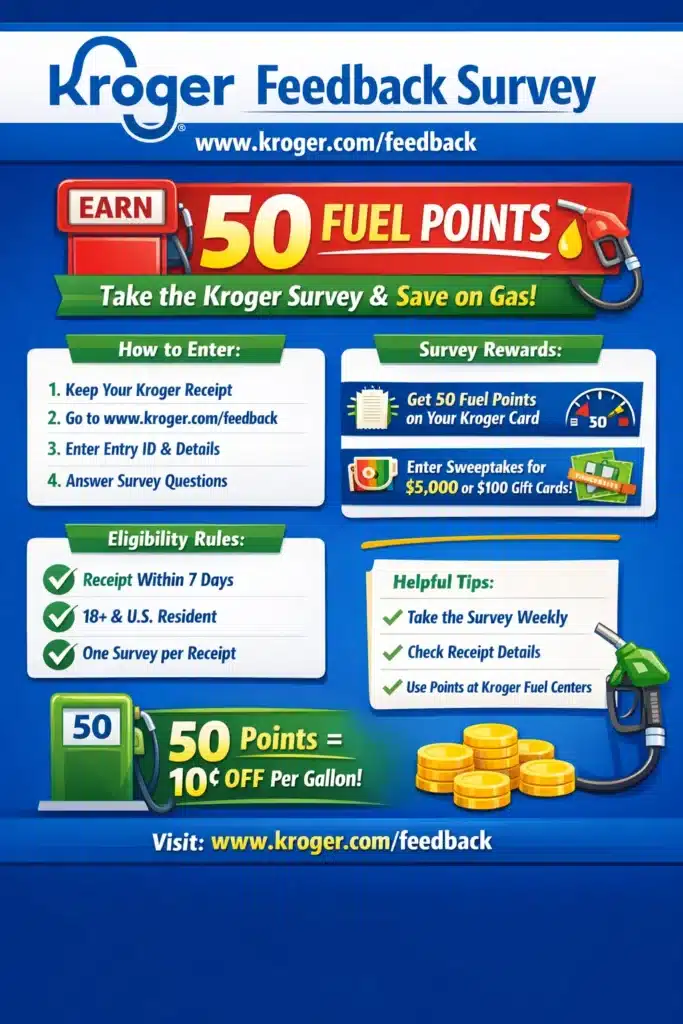
If you shop at Kroger or any Kroger‑family grocery store, the Kroger Feedback survey on www.kroger.com/feedback is the official way to share your experience and earn 50 bonus fuel points on your shopper’s card.
This guide walks you step by step through the process so you know exactly what to expect before you start.
What Is KrogerFeedback?
Kroger Feedback is the official customer satisfaction survey run by The Kroger Co. to measure real shoppers’ experiences in its supermarkets, fuel centers, and pharmacies. The survey lives at www.kroger.com/feedback, which has replaced older URLs like www.krogerfeedback.com.
Through a short online questionnaire, Kroger asks about:
All about kroger feedback survey on www.kroger.com/feedback
Overall satisfaction with your recent visit
Product availability and freshness
Store cleanliness and layout
Staff friendliness and checkout speed
Pricing, promotions, and value for money
When you complete the survey, Kroger rewards you with 50 fuel points and may also enter you into gift card sweepstakes, depending on the current promotion.
What You Need Before You Start the Kroger Survey?
Before you go to www.kroger.com/feedback, make sure you have these items ready:
A recent Kroger receipt from a participating store (Kroger, Ralphs, Fry’s, King Soopers, Fred Meyer, etc.).
The receipt should be no more than 7 days old, because survey invitations usually expire after a week.
A Kroger Plus loyalty card or alternate ID if you want the 50 fuel points loaded to your account.
A few minutes of uninterrupted time (most customers finish in about 5–7 minutes).
If you don’t see www.kroger.com/feedback on your receipt, check for a survey invitation message and an Entry ID or Survey ID. That code is how the system ties your responses to your visit.
How to Take the Kroger Feedback Survey at www.kroger.com/feedback
Follow these steps in order, just like a real customer would. This is exactly what users experience on the official survey page.
Step 1: Go to the Official Survey Page
Open your browser and type www.kroger.com/feedback in the address bar.
Confirm you’re on an official Kroger.com page (look for Kroger branding and the “Customer Satisfaction Survey” heading).
This helps you avoid copycat sites that only mimic the Kroger Feedback survey.
Step 2: Choose Your Preferred Language
On the first screen, Kroger lets you select your language for the questionnaire:
English
Spanish (Español)
Choosing your preferred language makes the survey easier to understand and encourages more accurate feedback.
Step 3: Enter Details From Your Kroger Receipt
Next, the survey asks for information printed on your receipt. Depending on the format, you may need to enter:
A Survey ID or Entry ID (commonly 15–21 digits)
Date of visit
Time of visit
Store number or terminal details, if shown
This information confirms that:
You actually shopped at a Kroger‑family store
Your feedback is tied to the correct location and time window
If your receipt is older than 7 days, the system may reject the code and you won’t be able to continue.
Step 4: Answer the Customer Satisfaction Questions Honestly
Once your receipt data is accepted, you’ll see a series of pages with multiple‑choice and rating‑scale questions. Common question types include:
Overall satisfaction with your visit (e.g., from “Extremely Dissatisfied” to “Highly Satisfied”).
Ratings for store cleanliness, product quality, and staff helpfulness.
Whether you found what you were looking for and how easy it was to navigate the aisles.
How satisfied you were with checkout speed and self‑checkout, if applicable.
How likely you are to recommend the store to friends or family.
You may also get open‑ended questions asking what Kroger could improve or what went especially well.
You don’t need perfect grammar or long paragraphs—Kroger simply wants honest, specific feedback based on a real experience.
Step 5: Enter Your Kroger Plus Card or Alternate ID
Before the survey ends, you usually see a prompt to enter either:
Your Kroger Plus loyalty card number, or
Your alternate ID (such as a phone number registered to your account)
This step is essential if your current promotion offers 50 fuel points for completing the survey:
The system uses your Plus card or ID to load the 50 fuel points to your account.
Fuel points can then be redeemed at Kroger‑family fuel centers, subject to standard Kroger fuel program rules.
If you skip this step or don’t have a card, you may still complete the survey but won’t receive fuel points.
Step 6: Submit the Survey and Note Any Confirmation Code
After you answer all questions and provide your loyalty details:
Review your answers if the system gives you a summary.
Click Submit to finalize the survey.
Some survey periods show a confirmation message and a validation code. In earlier versions, customers were instructed to write that code on their receipt; now, many promotions simply apply fuel points automatically to your shopper’s card.
What Rewards Can You Get From Kroger Feedback?
The exact rewards can change by promotional period, but the most common incentives are:
50 bonus fuel points added to your Kroger Plus card for completing the survey
Entry into monthly sweepstakes for Kroger gift cards, such as:
Grand prizes around $5,000 in Kroger gift cards
Secondary prizes like $100 gift cards Kroger uses these rewards as a thank‑you for taking the time to respond. They also encourage more customers to participate so the company can see patterns across different store locations and time periods.
Who Is Eligible to Take the Survey?
To keep the survey and any sweepstakes fair and meaningful, Kroger sets basic eligibility rules:
You must be 18 years or older at the time of entry.
You must be a legal resident of the United States (for most current survey periods).
You typically need a recent purchase receipt from a Kroger‑family store, valid for 7 days for survey entry.
Employees of Kroger and their immediate families are usually not eligible for sweepstakes prizes (always check the current official rules).
Some periods also provide a no‑purchase‑necessary route, where customers can enter using store information instead of a paid receipt, to comply with sweepstakes regulations.
For the most accurate eligibility information, always check the official rules link from within the survey or Kroger’s help pages.
Why Kroger Feedback Matters (Beyond Fuel Points)?
The Kroger Feedback survey does more than just hand out fuel points and gift card entries. It gives customers a direct channel to influence:
Product selection on the shelves
Service quality at the deli, bakery, pharmacy, and front end
Store cleanliness and safety standards
Checkout technology, including self‑checkout performance
Promotions and pricing, based on what feels like good value
For Kroger, these responses feed into store‑level improvements, employee training, and decisions about stock levels and new initiatives. For you, it’s a low‑effort way to turn a regular grocery visit into:
A better future shopping experience
A small, recurring fuel discount
Occasional chances at larger Kroger gift card prizes
Key Tips to Complete www.kroger.com/feedback Successfully
To recap, here are practical tips users will appreciate:
Complete the survey as soon as possible after your visit, and always before the 7‑day receipt limit.
Keep your receipt handy so you can quickly enter the Survey ID, date, and time.
Use your Kroger Plus card or alternate ID to make sure the 50 fuel points actually post.
Answer honestly.Kroger is looking for genuine feedback, not only positive comments.
By following these steps, shoppers get a smooth, secure experience at www.kroger.com/feedback, while helping Kroger fine‑tune what happens in store every day.
Frequently Asked Questions (FAQ)
“Kroger feedback survey not working” – How to Fix Common Issues
If the site does not load, switch browsers, clear cookies, or use the official alternate login page.
“I Do Not Have an Entry ID” – Alternative Steps
If your receipt does not have an entry ID, visit www.kroger.com/rxfeedback survey. This is available for pharmacy purchases and other exceptions.
Eligibility – Do All Shoppers Get Fuel Points?
Only customers with valid receipts and Kroger Plus accounts can earn fuel points. However, anyone with a receipt can enter the sweepstakes.
Is Your Personal Information Secure?
Yes. Kroger uses secure systems to protect customer information. Your survey responses are kept confidential and used only for improvement purposes.
Can I Use My Kroger Gift Card on Groceries?
Yes. Kroger gift cards won in sweepstakes or given as rewards can be used for grocery purchases, fuel, or online orders.
Expert Tips to Maximize Kroger Rewards
How to Track Your Fuel Points Effectively?
Log in to My Kroger fuel points login at the official Kroger site or app to track your balance in real time.
Using the Survey for Digital Coupons and Extra Bonuses
Sometimes completing surveys unlocks personalized digital coupons. Always check your Kroger app after finishing the survey.
Checking Your Kroger Plus Card and Loyalty Details
Make sure your loyalty card is linked correctly to your account so rewards apply instantly.
Real Shopper Experiences and Feedback
Highest-Rated Kroger Locations and What Shoppers Love
Customers praise clean stores, fresh produce, and helpful staff at top-rated Kroger branches.
Common Frustrations and How Kroger Improves
Some shoppers report checkout delays or missing products. Kroger uses survey data to improve these areas.
Testimonials From Satisfied Customers
Many customers appreciate the extra savings through surveys and fuel rewards, calling it a win-win program.
Final Thoughts
The KrogerFeedback survey at www.krogerfeedback.com is one of the simplest ways to save money and make your voice heard. With just a few minutes of your time, you earn 50 fuel points, enter sweepstakes, and help Kroger deliver a better shopping experience.
If you face issues like Kroger feedback survey not working, use the troubleshooting tips shared in this guide. Remember to keep your receipt safe, link your loyalty card, and take advantage of every reward opportunity.
MyInfo Kroger is the official employee self-service portal where associates securely access pay stubs, work schedules, benefits, tax forms, and personal information online.
Employees log in at myinfo.kroger.com using their Enterprise User ID (EUID) and password to reach a personalised dashboard.
From viewing payroll history and downloading W-2 forms to checking eSchedules and submitting time-off requests, MyInfo centralises essential HR tools in one place.
The portal reduces the need for in-store visits and supports secure authentication for data protection. It is designed exclusively for authorised current and former Kroger employees.
Who Can Access MyInfo?
Kroger MyInfo is designed exclusively for authorised Kroger workforce members. Access is limited to the following groups:
For security, Kroger may send a verification code to your registered device.
Enter the code or approve the notification to continue.
✅ Step 6: Click “Sign In”
Click the Sign In button to access your employee dashboard.
After logging in, you can:
View and download pay stubs
Check work schedules
Update personal information
Access benefits and tax documents
MyInfo Kroger Password Reset (Step-by-Step Guide)
Kroger associates can reset their MyInfo Kroger password through the official login page or via the internal IAM system. You’ll need your Enterprise User ID (EUID) to begin the secure reset process.
🔐 Reset Your MyInfo Kroger Password (Login Page Method)
Look for “My Schedule”, “Schedule”, or “Work Schedule” on the dashboard
Or use the search bar to find scheduling tools
✅ Step 3: View Upcoming Shifts
You can:
See weekly shifts
Check shift timings
View approved time-off requests
Confirm schedule changes
Some locations may redirect scheduling to FEED.
📱 Method 2: Check Schedule via FEED (Mobile or Store Computer)
Kroger also manages schedules through the following:
👉 Feed.Kroger.com
Steps:
Log in with your EUID and password
Click “My Schedule”
View current and upcoming shifts
This works on:
Store computers
Personal mobile browsers
FEED mobile interface
🔄 What If Your Schedule Is Not Showing?
If you cannot see your schedule:
Refresh the page
Clear browser cache
Try another browser
Confirm you are checking the correct week
Ask your department manager to verify the posting.
Schedules are usually updated weekly by store management.
Frequently Asked Questions
What Is MyInfo Kroger?
MyInfo Kroger is the official employee self-service portal where associates can access pay stubs, schedules, tax forms, benefits, and personal employment information.
Who Can Access MyInfo?
Only authorized Kroger employees with a valid Enterprise User ID (EUID) and password can log in.
What Is an EUID?
An Enterprise User ID (EUID) is your unique employee username assigned during onboarding. It is required for all Kroger internal systems.
How Do I Log In to MyInfo Kroger?
Visit myinfo.kroger.com, enter your EUID and password, complete multi-factor authentication (if prompted), and click Sign In.
How Do I Reset My Password?
Click “Forgot Password?” on the login page, enter your EUID, verify your identity, and create a new secure password.
Why Is My MyInfo Account Locked?
Your account may lock after multiple failed login attempts. Contact your store manager or the Kroger Help Desk to unlock it.
How Do I View My Pay Stubs?
After logging in, go to Payroll or Pay Stubs, select a pay period, and click View or Download (PDF).
Can I Download My Pay Stub as a PDF?
Yes. Select the pay period and click Download to save a PDF copy.
How Do I Access My W-2 Form?
Log in to MyInfo, go to the Tax Forms or W-2 Section, select the year, and download the form.
Can Former Employees Access MyInfo?
In many cases, former associates can log in to myhistoricalinfo.kroger.com to access past pay stubs and tax forms.
How Do I Check My Work Schedule?
Log in to MyInfo and navigate to My Schedule or use the following:
👉 Feed.Kroger.com
to view shifts and time-off status.
How Do I Update Direct Deposit Information?
Go to Payroll or Payment Settings, select Direct Deposit, update your bank details, and save changes.
Does MyInfo Have a Mobile App?
MyInfo is primarily accessed via a web browser. Some features may also be available through the FEED portal depending on location.
Why Is MyInfo Kroger Not Working?
Common reasons include:
Expired password
Browser cache issues
Incorrect EUID
Temporary system maintenance
Clearing cache or resetting your password usually fixes the issue.
Kroger uses an EUID, or Enterprise User ID, as a unique identifier for every employee across its internal systems. The design of the EUID format is intentional, ensuring that no two employees ever share the same ID and that each person can securely access the company’s digital resources.
Structure of the EUID
The EUID is typically an alphanumeric code composed of a combination of initials and numbers. For example, it often uses the employee’s first and last initials followed by a unique five-digit number, such as “bk00001” for someone named Barney Kroger. This structure is simple but highly effective for a company with a large workforce.
Assignment Process
When a new employee is hired, the EUID is generated and assigned during the onboarding process. This is usually handled by HR or the orientation team, ensuring that each new EUID is checked against existing records to avoid duplication. The system automatically verifies that the combination of initials and numbers has not been used before, so every EUID remains unique.
Why Initials Plus Numbers?
Using initials alone would quickly lead to duplicate IDs, especially in a company as large as Kroger. By adding a five-digit number, Kroger can create hundreds of thousands of unique combinations, even for employees with the same initials. This method also makes the EUID easier for employees to remember while still maintaining the necessary uniqueness.
Permanent and Consistent
Once assigned, an employee’s EUID does not change, even if they transfer to a different Kroger location or move to a new role within the company. This consistency is important for tracking employment history, payroll, training, and system access. It also means that the EUID is a permanent digital identity within the Kroger network.
Security and Confidentiality
The EUID system is designed not just for uniqueness but also for security. Each EUID is tied to secure login credentials, and strict password rules are enforced. For example, employees are required to choose passwords that do not include any part of their name or EUID, and passwords must contain both letters and numbers. Passwords also cannot be reused for two years, further protecting employee accounts.
Uses Across Kroger Systems
The EUID is used to access a wide range of internal Kroger platforms, including:
MyTime for scheduling and time management
Kronos for clocking in and out
CAO for computer-assisted ordering
Kweb for company news and updates
Express HR for managing HR information
Having a single, unique EUID for each employee streamlines access and ensures that all activity is accurately tracked to the correct person.
Easy Retrieval and Management
If an employee forgets their EUID, it can be retrieved through the company’s internal portal or with help from HR. New employees receive their EUID during onboarding, and existing employees can find theirs in their account details or by contacting their manager.
Conclusion
The EUID format at Kroger is carefully designed to guarantee uniqueness by combining employee initials with a unique series of numbers. This approach supports security, efficiency, and accurate tracking across all company systems. By using this format, Kroger ensures that every employee has a distinct digital identity that follows them throughout their career with the company.
Tired of Kroger MyTime payroll glitches eating your hard-earned cash? You clock overtime, but the paycheck comes up short. Shifts vanish from ESchedule, or time punches ghost you completely. MyTime-Kroger.net gets it , these headaches hit associates daily. This no-BS guide walks you through MyTime login, error spotting, and fast fixes straight from real employee wins. You reclaim your pay in one cycle when you follow these steps.
MyTime Kroger Basics
Kroger MyTime powers your entire associate dashboard at mytime.kroger.com. You punch in with EUID and SecureWEB password – simple as that. UKG Dimensions crunches timecards, spits out schedules, and dishes pay stubs on demand.
Managers lock down swaps and time-off, but you control daily views: weekly calendars, shift bids, availability tweaks. 2025 updates slap geofencing on clocks – punch inside the store or eat the error. Kronos-to-UKG switch left scars: 30% of logins battle unpaid breaks, holiday premium flops, blank ESchedules.
Quick MyTime error decoder table:
MyTime Glitch
What Screws You
Cash Hit
Pay Shortfall
Hours vanish in sync
$75-400 gone per check
Shift Double-Books
Edits wipe your slots
No-shows, write-ups
Punch Rejects
Post-shift edits blocked
OT erased forever
Screenshot obsession saves asses – capture MyTime screens with dates stamped. Forums swear by this: 65% of supervisors fix on sight when you shove proof under their nose.
Step-by-Step MyTime Error Smackdown
Raid MyTime Post-Shift: Crack open mytime.kroger.com the second you clock out. Hammer “Timecard” for punch proof, “ESchedule” for shift reality. Missing ins? Hour mismatches? Screenshot like your paycheck depends on it (it does). Clocked-in status lets you self-tweak minor crap – policy greenlights it.
Ambush Your Supervisor: Blast email with screenshots or corner ’em live. Bark facts: “MyTime logs 6 hours on 12/20 9-5 shift – I pulled 8, here’s proof.” Snag that payroll adjustment form. Bosses rubber-stamp basics same-day. Stonewall? Drag HR in pronto.
Drop the MyLife Payroll Bomb: Swing into MyLife@Kroger portal. Hurl screenshots at the dispute form. Spell out dates, screw-up type, cash owed. Nab your ticket number. MyTime chews on it 3-5 days – stalk that status like a hawk.
Escalate the MyTime Beatdown: One pay cycle flops? Storm store payroll with printouts. Emergency? Punch 1-800-576-4377 – MyTime support lines straight to UKG overlords.
Unleash Union Hell for Stubborn Glitches: UFCW crew? Storm ufcw700.org/mytime or ufcw400.org/mytime. Tag “pay rip-off” or “schedule sabotage,” bolt on evidence. Reps swarm in 48 hours, ram audits down Kroger’s throat.
Lock in the MyTime Victory: Eyeball next stub in MyLife@Kroger. Jot what clicked. Hoard emails 6 months – labor boards love paper trails.
MyTime hack pack: Tuesday reports dodge Friday chaos, desktop crushes upload fails, UKG app confirms punches live. Reddit warriors clock 72% kills at step 2 with visual ammo. 2023 lawsuits forced 45% MyTime auto-fixes – you finish the job.
MyTime curveballs handled:
Login Lockout? Smash “Forgot Password” at kroger-sso.prd.mykronos.com.
Boss Plays Dead? BCC HR, log the dodge.
Holiday Pay AWOL? Slam handbook premiums into your claim.
Pro MyTime Moves – Stop Glitches Before They Bite
MyTime-Kroger.net tracks every Kroger store hiccup. You kill 85% of drama with these 5-minute rituals.
Punch Like a Sniper: UKG app geofences your ass near doors – eyeball-confirm every hit.
UFCW crushes 92% repeat MyTime offenders. Snag handbook at kroger-mytime.com – quote rules like ammo. 2025 AI slashes errors 28%, but you own the kill shot.
Rig your MyTime war chest: Screenshot vault, handbook PDF, union hotlinks. Spread to crew – turn store into fortress.
Kroger is one of the largest retail grocery companies in the United States, employing hundreds of thousands of associates. Managing such a large workforce requires an efficient digital system, and that is where MyLifeAtKroger comes in.
MyLifeAtKroger is the official Kroger employee portal designed to give team members instant access to their schedules, payroll, benefits, and company updates. It connects every part of the employee experience—from onboarding to retirement—into one easy-to-use platform.
If you are a Kroger associate, this guide will walk you through everything you need to know about MyLifeAtKroger, including how to log in, access your pay stubs, view work schedules, reset passwords, and get HR support.
What is MyLifeAtKroger?
MyLifeAtKroger is Kroger’s secure online portal for employees, also known as the Employee Self-Service system or ESS. The platform is used to manage personal information, work schedules, payroll details, and HR communications.
Who can use it:
Current Kroger store associates and department heads
Corporate employees
Pharmacy and distribution staff
Retirees who need access to their W-2 or pension information
The portal allows every Kroger employee to manage HR-related tasks without needing to contact their store manager or the corporate HR office directly. It is available 24 hours a day and can be accessed from work or home using a computer or smartphone.
Key features include:
Payroll management and pay stub downloads
Benefits enrollment and updates
Schedule tracking and time-off requests
Secure access to tax forms and company messages
The system uses strong security protocols, ensuring that employee data remains protected at all times.
MyLifeAtKroger Login To Access Your Employee Account?
Logging in to MyLifeAtKroger is quick and simple once you know where to go. The process only takes a few minutes and can be done on a computer or smartphone.
Once logged in, your employee dashboard will appear with schedule, payroll, and HR links.
The Enterprise ID is a unique code given to every Kroger employee when they join the company. Your password is created during registration and should be kept private.
Browser requirements:
Use updated browsers like Chrome, Edge, or Safari.
Ensure cookies and JavaScript are enabled.
Avoid using public Wi-Fi networks when logging in.
Login Help if MyLifeAtKroger is Not Working
Clear your browser cache and cookies.
Check for maintenance notices on the Kroger intranet.
Make sure you are using the correct web address and Enterprise ID.
If you still cannot log in, contact Kroger HR support for assistance.
MyLifeAtKroger login is designed for stability, but periodic maintenance may temporarily affect access. Patience and correct login details usually solve the issue quickly.
MyLifeAtKroger Schedule Login To Check Your Work Schedule
One of the most frequently used features of MyLifeAtKroger is the schedule login system, which helps associates keep track of shifts and working hours.
Kroger uses Feed.Kroger.com integrated with MyLifeAtKroger to manage employee schedules.
How to check your schedule?
Log in to your MyLifeAtKroger account.
Navigate to Schedule or Feed.Kroger.com.
Select the week or date range you want to view.
You will see your assigned shifts, location, and department details.
Associates can also submit time-off requests, swap shifts, and update availability through the same portal.
Tips for effective scheduling.
Check your schedule frequently to stay updated.
Use the mobile view for quick access.
Confirm any shift swaps with your supervisor.
The scheduling feature makes it easy for Kroger employees to plan their personal time and ensures store operations run smoothly.
MyLifeAtKroger Payroll Login and HR Express Access
Kroger manages employee payroll through the HR Express system, which is linked directly within MyLifeAtKroger.
To access payroll information.
Log in to MyLifeAtKroger.
Click on Payroll or HR Express in your dashboard.
Choose Pay Stubs to view or download your recent payments.
Select Direct Deposit to add or change your bank details.
What you can do in the payroll section.
View detailed pay statements
Access W-2 and tax forms
Manage direct deposit and account updates
Track year-to-date earnings
You can also print or save copies of your pay stubs for future reference.
Accessing payroll on mobile.
The payroll system works on mobile browsers as well. Open MyLifeAtKroger from your phone, go to HR Express, and select View Pay Stub.
Payroll information is updated on payday, and any changes to direct deposit may take one or two pay cycles to appear.
MyLifeAtKroger Benefits Enrollment and Insurance Options
The HR Express portal inside MyLifeAtKroger allows employees to manage all benefit-related information.
Common benefits include
Medical, dental, and vision insurance
Retirement savings plans
Life insurance and disability coverage
Paid time off and vacation tracking
Tuition reimbursement and employee discounts
How to enroll or make changes
Log in to MyLifeAtKroger.
Select HR Express → Benefits.
Review your current plan.
Click Enroll or Modify Benefits.
Confirm your selection and save changes.
Open enrollment usually occurs once a year, but certain life events like marriage or a new child may allow changes outside the open window.
Staying updated on your benefits helps ensure you receive full coverage and avoid delays in insurance claims.
MyLifeAtKroger Password Reset and Account Recovery
If you forget your password or get locked out of your account, MyLifeAtKroger provides an easy recovery option.
To reset your password
Visit the login page and click Forgot Password.
Enter your Enterprise ID and registered email address.
Receive a verification code or link.
Follow the link to create a new password.
Password requirements
At least eight characters
Includes letters and numbers
Avoid using previous passwords
If your account is locked
Wait about 15 minutes before trying again. If the issue continues, contact the Kroger HR Service Center for account recovery support.
The portal prioritizes security, so multiple incorrect login attempts automatically trigger temporary locks.
MyLifeAtKroger App and Mobile Login Options
Kroger employees can access their accounts using a mobile browser. While there is no standalone MyLifeAtKroger app, the web version is fully responsive.
Verify through any secondary security step if required.
Security reminders
Use your personal device or home Wi-Fi.
Avoid public networks.
Log out once you finish.
Retirees and remote staff can also use home access to download tax forms or manage benefits without visiting a physical store.
MyLifeAtKroger for Retirees – Access and Benefits
Retirees continue to enjoy access to MyLifeAtKroger to manage post-employment details.
Services available to retirees
Pension and 401(k) information
Health insurance coverage updates
Access to W-2 or tax statements
HR contact information for retirement benefits
Retirees can log in using the same Enterprise ID they had while employed, but passwords may need updating after extended inactivity.
If you cannot access your retiree account, contact the Kroger Retiree Support Line listed in your benefit packet.
Security and Privacy in MyLifeAtKroger Portal
Kroger takes data protection seriously, ensuring that every employee’s personal information remains private and secure.
Security measures include
SSL encryption on all pages
Multi-factor authentication
Timed logout after inactivity
Regular system monitoring and audits
Employees should follow these best practices
Keep login details confidential
Change passwords regularly
Report suspicious emails or messages claiming to be from Kroger
Protecting employee data is a top priority, and the company continually updates its technology to meet modern security standards.
FAQs About MyLifeAtKroger
1. How do I log in to MyLifeAtKroger for the first time Visit www.mylifeatkroger.com and enter your Enterprise ID and password. If it is your first login, follow the registration prompt to confirm your identity.
2. What is my Kroger Enterprise ID Your Enterprise ID is your unique employee identification code. It is usually provided by your manager during onboarding.
3. Can I check my work schedule from home Yes. Log in from home using the same portal and navigate to the Schedule section or Feed.Kroger.com.
4. How can I view my pay stub or W-2 on MyLifeAtKroger Go to HR Express inside the portal, then select Payroll and choose Pay Stubs or W-2 Forms.
5. What should I do if I forget my password Click “Forgot Password” on the login page, enter your ID and email, and follow the instructions to reset it.
6. How do I contact Kroger HR for help You can find HR contact information in the Help section of the portal or on your employee ID card.
7. Can retirees still access the portal Yes. Retirees can log in to manage benefits and tax information. Contact retiree HR support if access is lost.
8. Is MyLifeAtKroger secure to use Absolutely. The system follows strict data protection policies with encryption and multi-layered authentication.
Editorial Accuracy and Disclaimer
The details in this guide are based on verified information from Kroger Co. and official employee resources, including Feed.Kroger.com and HR Express.
This article is intended for educational purposes to assist employees and retirees in navigating the MyLifeAtKroger portal. Always confirm details with your HR department if you encounter any differences or system updates.
Reflection and Actionable Takeaway
Technology has simplified how employees connect with their companies. MyLifeAtKroger is a perfect example of how digital tools make daily work easier, giving associates full control over schedules, pay, and benefits.
Take a few minutes to log in and explore the portal today. Review your schedule, confirm your pay details, and make sure your benefits are up to date. A quick visit can save hours of paperwork and ensure that you always stay informed and connected within the Kroger family.
Kroger employees use UKG Dimensions every day. Many employees clock in and check schedules without understanding how the system works. Some employees face schedule confusion or pay issues because no one explains the platform clearly.
This guide explains UKG Dimensions in simple terms. It shows how Kroger uses the system and why it matters to employees. The goal stays simple. Help Kroger employees understand the tool that controls schedules and pay.
What Is UKG Dimensions
UKG Dimensions is a workforce management system. Kroger uses it to manage employee schedules, time tracking, and attendance. Employees use the system to view shifts, check work hours, and request time off.
Managers use the same platform to build schedules and review timecards. The system connects work hours with payroll systems. This connection helps ensure employees receive correct pay.
Kroger uses UKG Dimensions across stores, warehouses, and offices. Employees access it through a web portal or a mobile app.
Why Kroger Uses UKG Dimensions?
Kroger manages a large workforce. Manual scheduling creates errors and confusion. UKG Dimensions gives Kroger better control.
The system helps Kroger track employee hours accurately. It supports fair scheduling and labor planning. It reduces payroll mistakes. It helps stores follow labor rules and union agreements.
UKG Dimensions also gives employees self service tools. Employees handle many work tasks without waiting for managers.
How UKG Dimensions Works at Kroger?
Employees log in using Kroger credentials. The dashboard shows schedules, timecards, and requests.
Employees clock in at the start of a shift and clock out at the end. The system records each punch. Managers review timecards before payroll runs.
The system tracks attendance records. It logs absences and late arrivals based on store rules.
Time and Attendance Tracking
UKG Dimensions records every work hour. Employees use approved devices to clock in and out.
The system tracks breaks and overtime. Employees can view timecards during the pay period. This feature helps employees spot errors early.
Accurate time tracking helps protect employee pay.
Schedule Management for Employees
Employees view daily and weekly schedules inside UKG Dimensions. Schedule updates appear when managers make changes.
Some stores allow shift swaps and open shift requests. Employees offer shifts or pick up extra hours when rules allow it.
This feature helps employees plan personal time.
Mobile App Access
UKG Dimensions offers a mobile app. Many Kroger employees use it on personal phones.
The app allows employees to:
View schedules
Check timecards
Request time off
Receive schedule alerts
Mobile access saves time. Employees do not need to visit store computers for basic tasks.
Time Off Requests
Employees request vacation and personal days through UKG Dimensions. The system shows available balances when connected to payroll.
Managers review requests inside the platform. Employees see approval updates in the app or portal.
This process keeps records clear and organized.
Attendance Visibility
UKG Dimensions shows attendance records. Employees can view absences and late entries.
This visibility helps employees understand attendance rules. It also reduces disputes during reviews.
How UKG Dimensions Helps Kroger Employees?
UKG Dimensions gives employees control over work information.
Employees always know when they work. They can check schedules anytime. This reduces missed shifts.
Employees track hours worked. They review timecards before pay day. This habit helps prevent pay issues.
Employees manage time off requests without paperwork. Employees receive clear updates on approvals.
UKG Dimensions improves daily work organization.
How Managers Use UKG Dimensions?
Managers rely on UKG Dimensions to run stores smoothly.
They create schedules based on store needs. They approve timecards and time off. They monitor attendance. They control labor costs.
The system helps managers adjust staffing quickly during busy periods.
Payroll Accuracy and UKG Dimensions
Payroll accuracy matters to every Kroger employee. UKG Dimensions connects time tracking with payroll systems.
Correct clock in data leads to correct pay. Employees can review timecards before payroll closes.
Early reviews help fix errors. This process builds trust.
Labor Rules and Compliance
Labor rules vary by state and union agreement. UKG Dimensions supports compliance.
The system tracks overtime limits and break rules. It flags scheduling issues.
This support protects employees and Kroger.
Common Problems Employees Face
Some Kroger employees face issues with UKG Dimensions.
Login problems often appear during first setup. Many stores require employees to activate access on store computers.
Schedule updates may not appear instantly in the mobile app. Employees should confirm schedules when changes occur.
Password resets often require store network access. Employees should reset passwords during work hours.
These issues usually resolve with store management or HR support.
Tips for Using UKG Dimensions Correctly
Employees should check schedules daily.
Employees should review timecards every week.
Employees should enable app notifications.
Employees should report errors quickly.
These habits reduce problems.
UKG Dimensions and MyTime Kroger
Many Kroger employees use MyTime Kroger with UKG Dimensions. These systems work together to manage schedules and payroll data.
Employees often access UKG Dimensions through MyTime portals or links provided by Kroger. Understanding both systems helps employees manage work information smoothly.
Future Role of UKG Dimensions at Kroger
Kroger continues to invest in workforce technology. UKG Dimensions remains a core system.
The platform continues to improve mobile tools and reporting features. These updates help employees and managers work more efficiently.
Final Thoughts
UKG Dimensions controls schedules, time tracking, attendance, and payroll connections at Kroger.
Employees who understand the system avoid missed shifts and pay issues. They manage work life with more clarity.
UKG Dimensions works best when employees use it correctly. Learning the system helps make daily work easier.
If you are a Kroger employee, you have probably heard the term EUID mentioned whenever you log into the MyTime portal or set up your work accounts. But what exactly is EUID, and why is it so important for your daily work routine at Kroger? In this blog post, I will explain what EUID is, how it is used in Kroger MyTime, and share everything you need to know to make your work life easier.
What Is EUID in Kroger MyTime?
EUID stands for Enterprise User ID. At Kroger, your EUID is your unique identification code that you use to access all the company’s digital resources, including the MyTime portal. The format is simple: it is made up of your first and last initials followed by a five-digit number. For example, if your name is Barney Kroger, your EUID might look like “bk00001”. This combination ensures that every employee has a unique and secure way to log in.
Why Does Kroger Use EUIDs?
Kroger is a massive company with hundreds of thousands of employees. Creating a unique and easy-to-remember login for everyone is a big challenge. The EUID format solves this by combining initials and numbers, so no two employees have the same ID. This method is also short enough to meet system requirements and easy for you to remember.
Where Do You Use Your EUID?
You will use your EUID every time you log into the MyTime portal at mytime.kroger.com or the secure tenant URL. MyTime is the system where you:
Check your work schedule
Clock in and out for shifts
Swap or cover shifts with coworkers
Update your availability
Apply for leave or time off
Without your EUID, you cannot access any of these features, so it is essential to keep it handy and secure.
How Do You Find Your EUID?
If you are new to Kroger or have forgotten your EUID, do not worry. There are several ways to find it:
Ask your manager or HR representative: They can look up your EUID and share it with you.
Check your onboarding paperwork: Your EUID is usually listed in your hiring documents.
Look in the MyTime or schedule editor: If you have access to a company computer, your EUID might be visible in your account details.
If you still cannot find it, your store’s customer service manager or schedule editor can help you retrieve it.
What If You Lose or Forget Your EUID?
If you forget your EUID, you will not be able to log into MyTime or other Kroger systems. In this case, your first step should be to contact your store manager or HR. They have access to employee records and can provide your EUID. Remember, your EUID is different from your employee number or clock-in number, so always double-check which one you are using.
Keeping Your EUID Secure
Your EUID is like a key to your work life at Kroger. Never share it with anyone who should not have it, and always use it only on official Kroger websites or apps. If you suspect someone else is using your EUID, report it to your manager or HR immediately to protect your account.
Why Is EUID Important for MyTime?
Every time you log into MyTime to check your schedule, clock in, or request time off, the system uses your EUID to identify you. This ensures your hours, shifts, and requests are recorded under your name and no one else’s. It also helps Kroger keep accurate records and maintain security for all employees.
Final Thoughts
Your EUID is the gateway to everything you do in Kroger MyTime. It is unique, secure, and essential for managing your work schedule, timecards, and more. If you ever have trouble with your EUID, reach out to your manager or HR for help. By understanding and keeping your EUID safe, you ensure a smooth and stress-free experience every time you use Kroger MyTime.